 YouVPN
First, choose an app
Choose one app. You will find your subscription link in your account.
HAPP
Connect with your subscription link
Hiddify
Alternative app
HAPP
1
Open your account or the Telegram bot. Go to your profile and copy your subscription link.
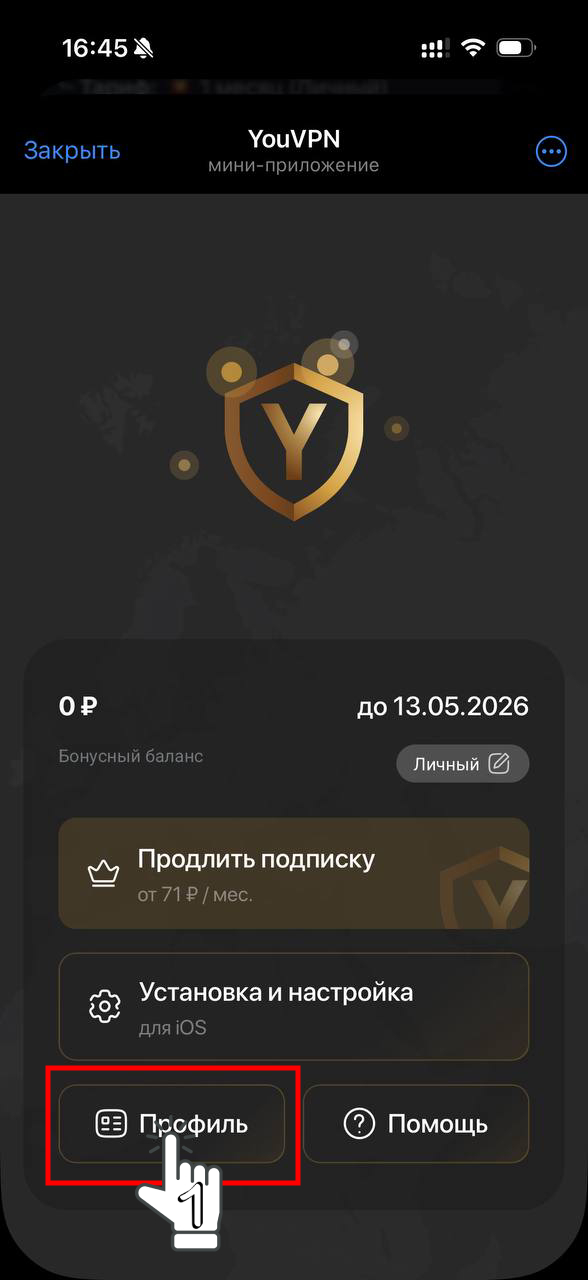
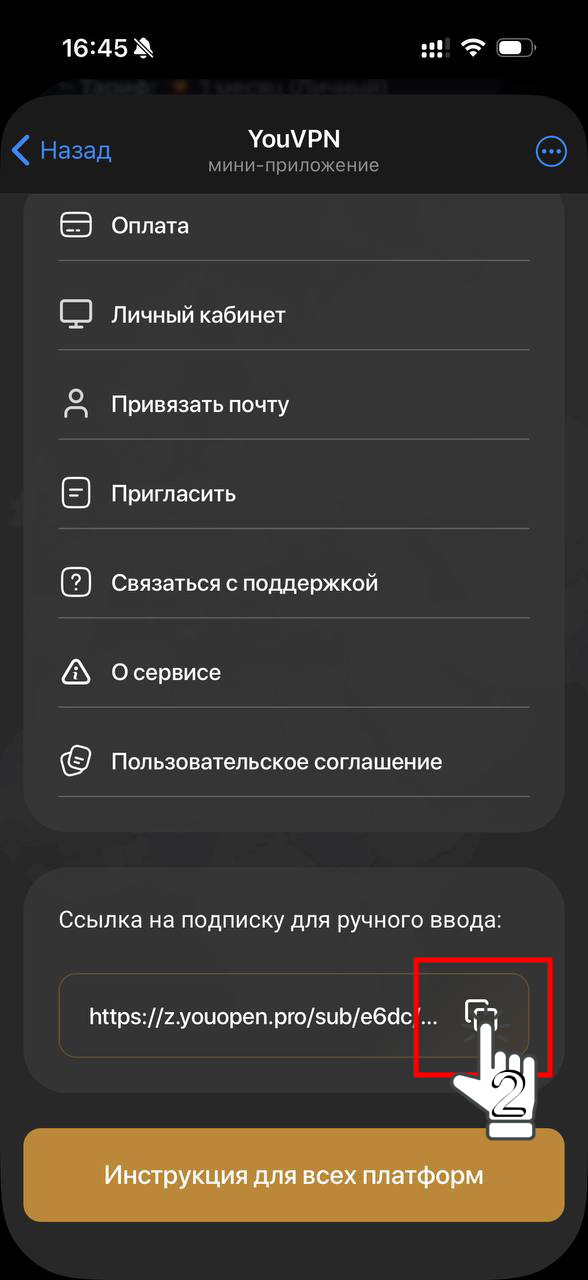
2
Download and install HAPP. While testing, disconnect other VPNs and proxies to avoid connection conflicts.
3
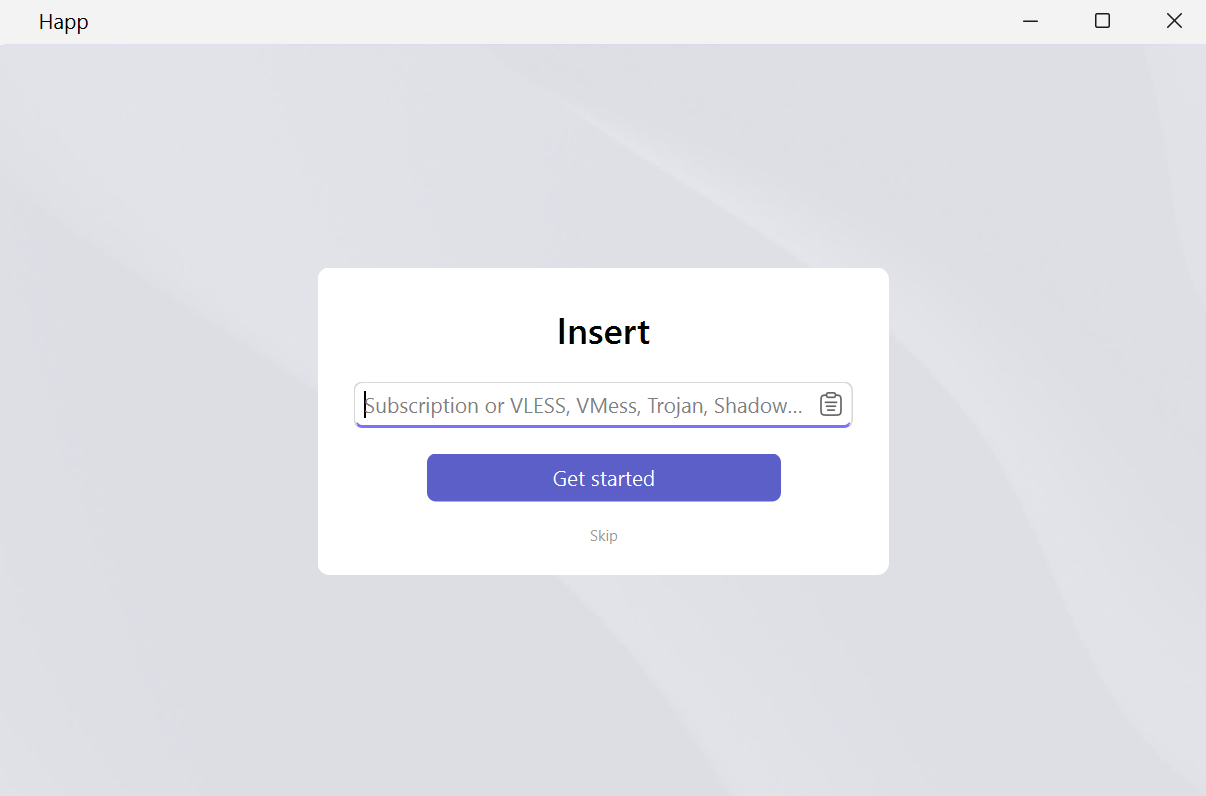
Open HAPP. Paste your subscription link and select “Get started”.
3.1
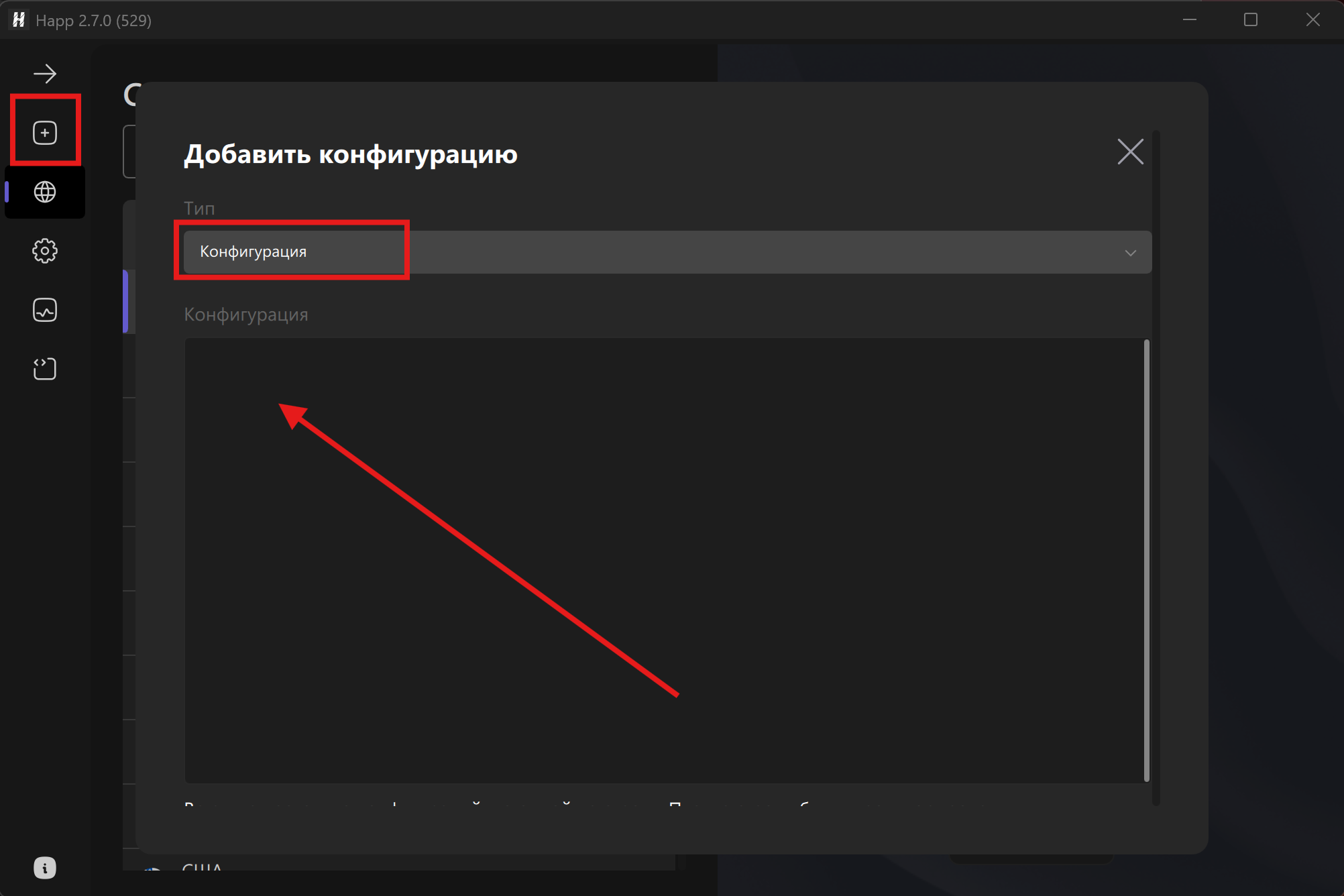
If the welcome screen does not appear, use the menu shown in the screenshot. Paste the link from step 1 into the “Configuration” field.
4
Open a site to check your connection. If it does not work, choose another location and reconnect. Connection troubleshooting
4.1
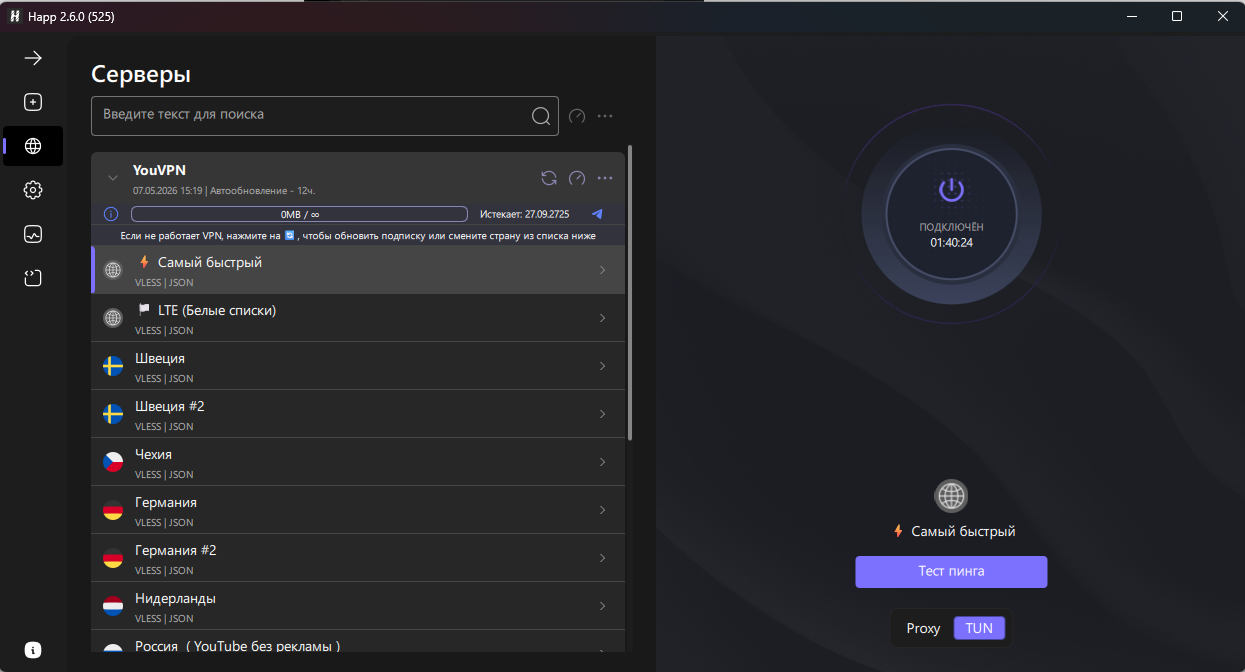
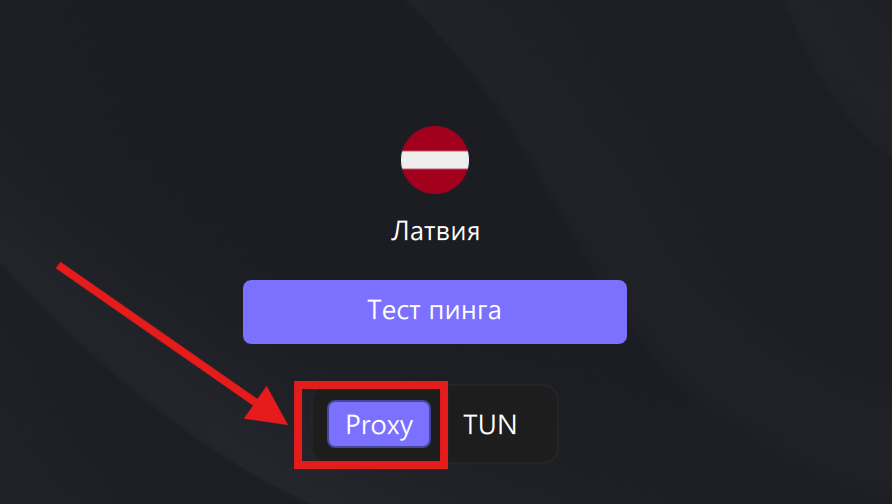
If the connection does not work, open the HAPP server screen and try Proxy mode. It applies to apps that use the system proxy. TUN mode routes device traffic through the tunnel according to your routing rules. Reconnect after switching modes.
Hiddify
1
Open your account or the Telegram bot. Go to your profile and copy your subscription link.
2
Download and install Hiddify.
3
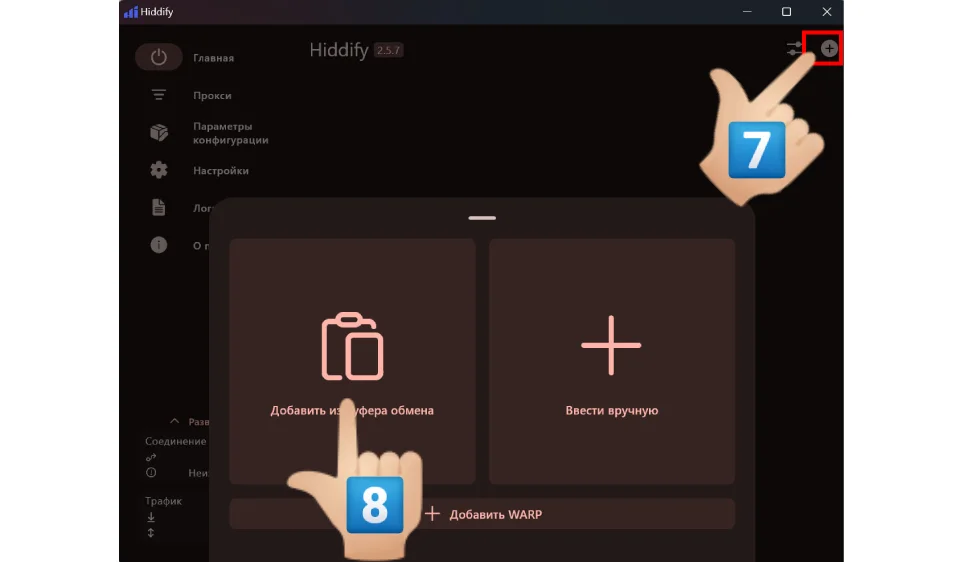
Open Hiddify, press “+” in the top-right corner, then select “Import from clipboard”.
4
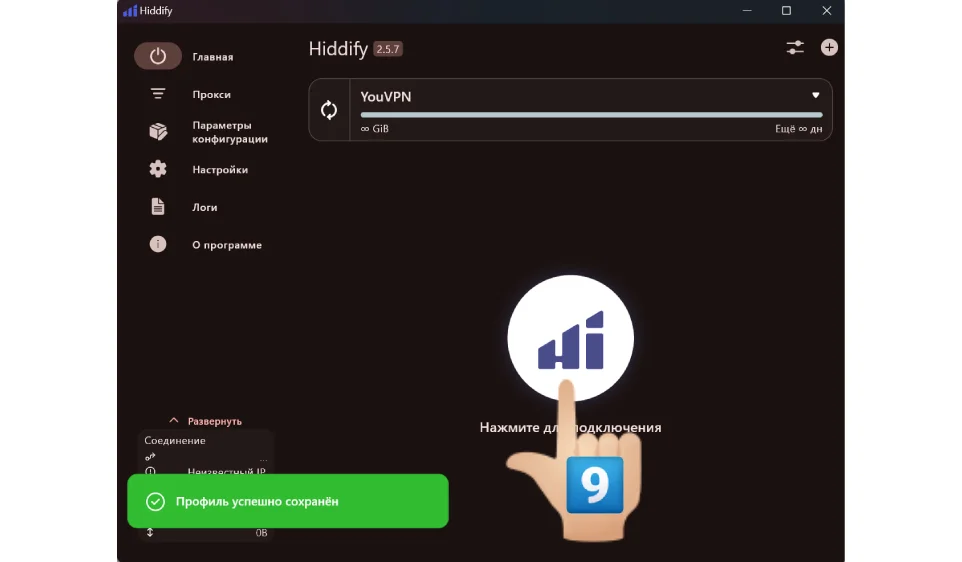
Press the large connect button in the centre.
5
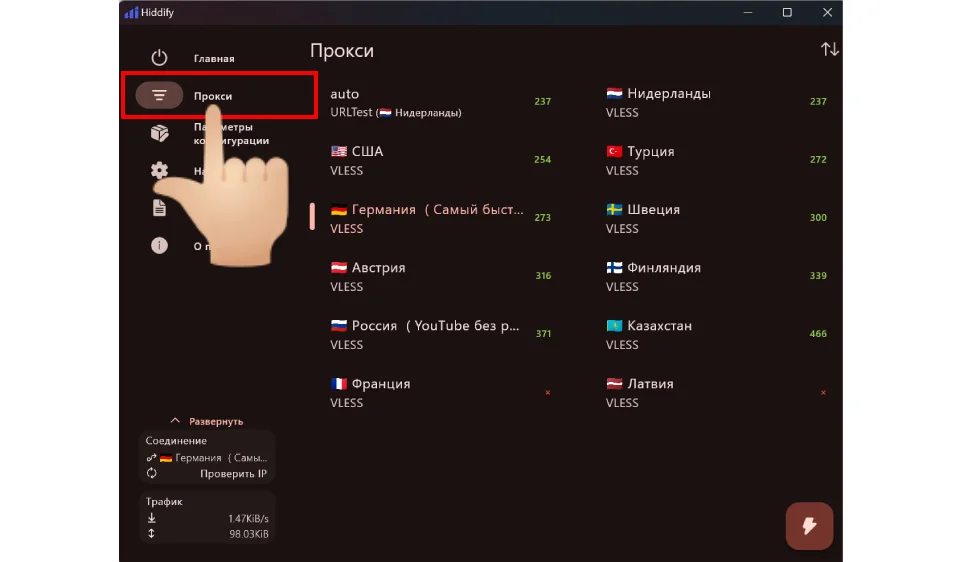
To change country, open “Proxies” while connected and choose a location. Disconnect and reconnect after making your selection.
6
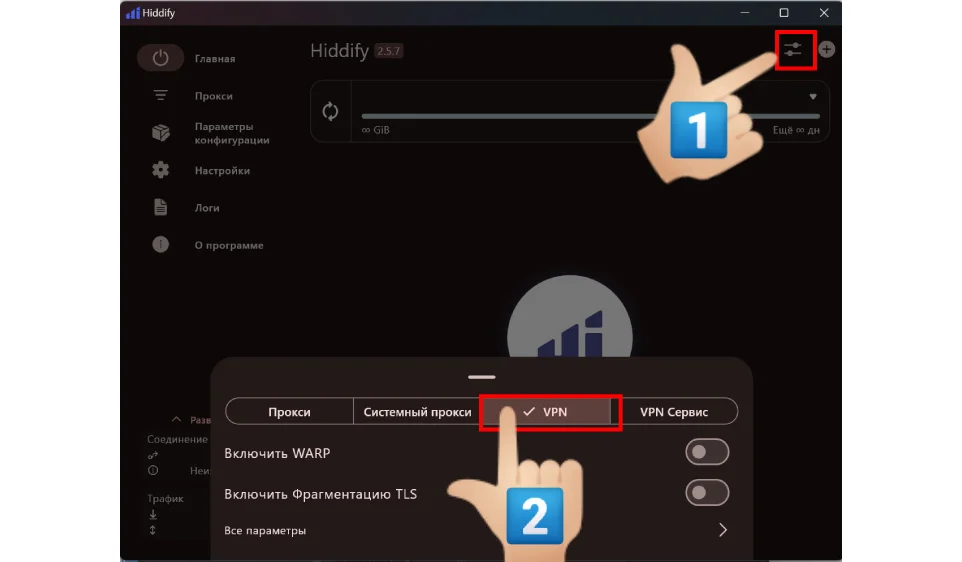
VPN mode may need administrator permissions. Close Hiddify, right-click its icon and choose “Run as administrator”. Then select VPN mode as shown below.
6.1
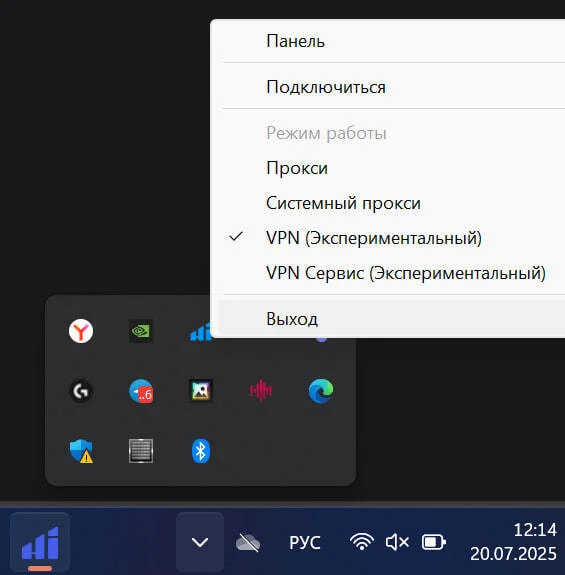
If an error appears, fully close Hiddify: right-click its system-tray icon and choose “Exit”. Then reopen the app.
7
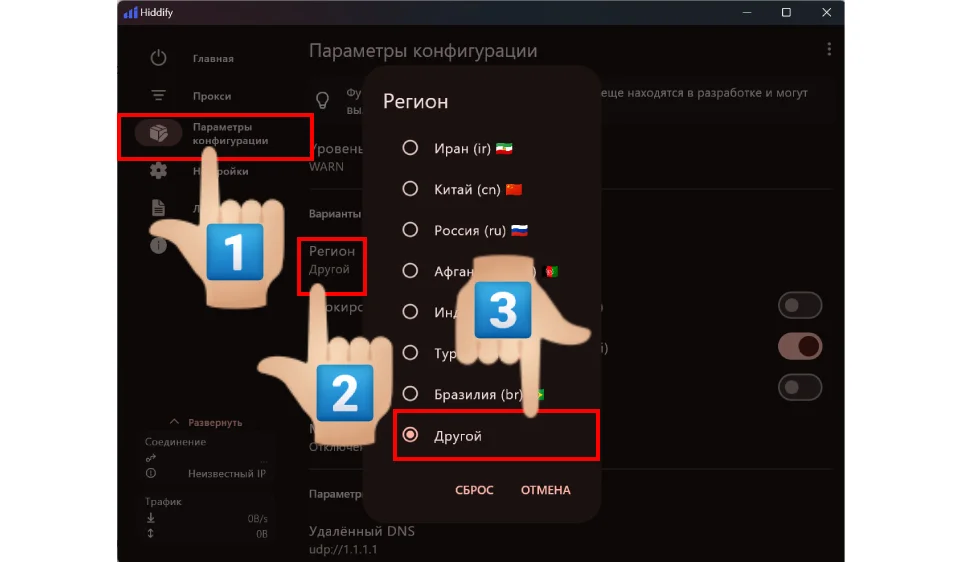
Hiddify routing rules may send traffic to Russian sites directly. To change this, open “Settings and configurations” → “Region” → “Other”, then reconnect.
Your experience matters
Did this help?
Your feedback helps us make these guides clearer.
We save your rating, reason and the guide address.