 YouVPN
First, choose an app
Choose one app. You will find your subscription link in your account.
Shadowrocket
Purchased separately in the App Store
1
Install Shadowrocket from the App Store on Apple TV. The app is purchased separately from your YouVPN subscription.
2
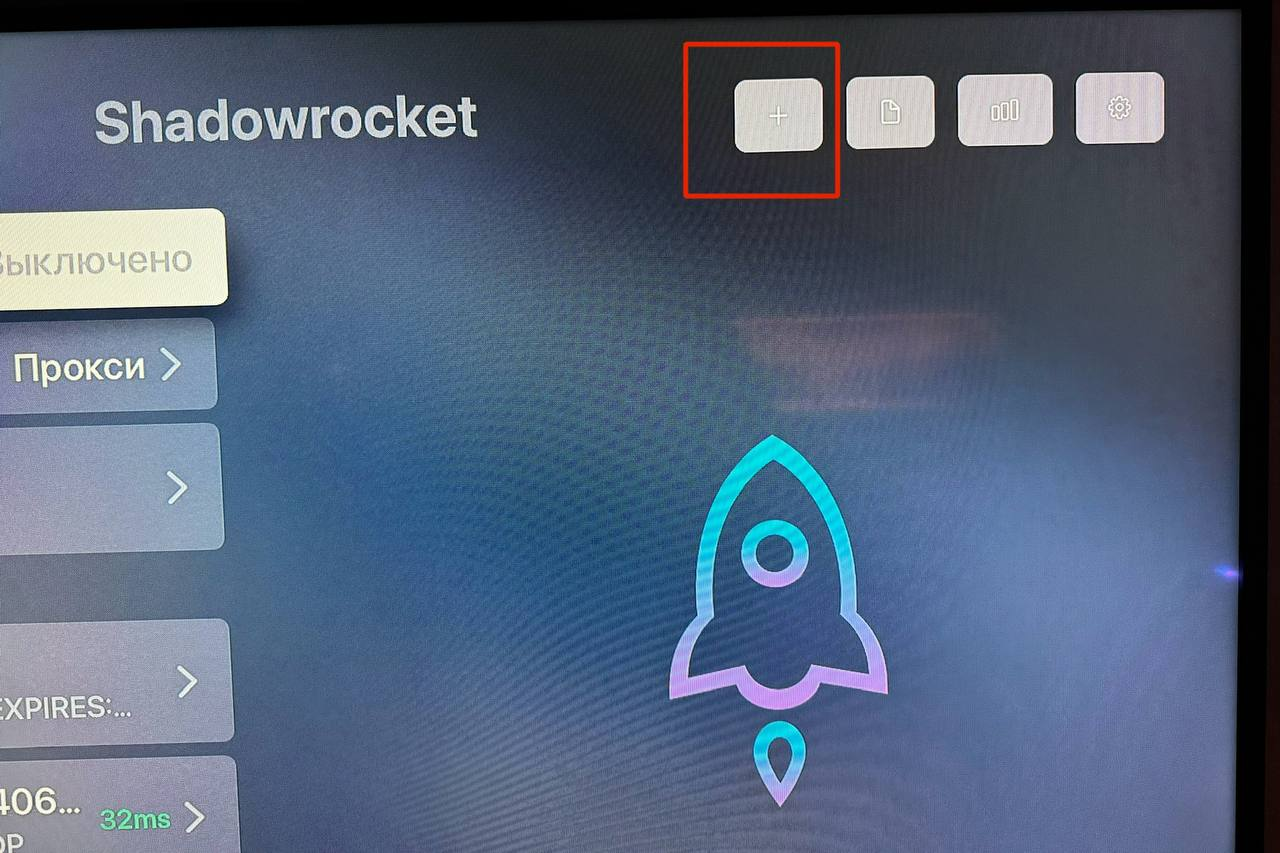
Press “+” to add a server.
3
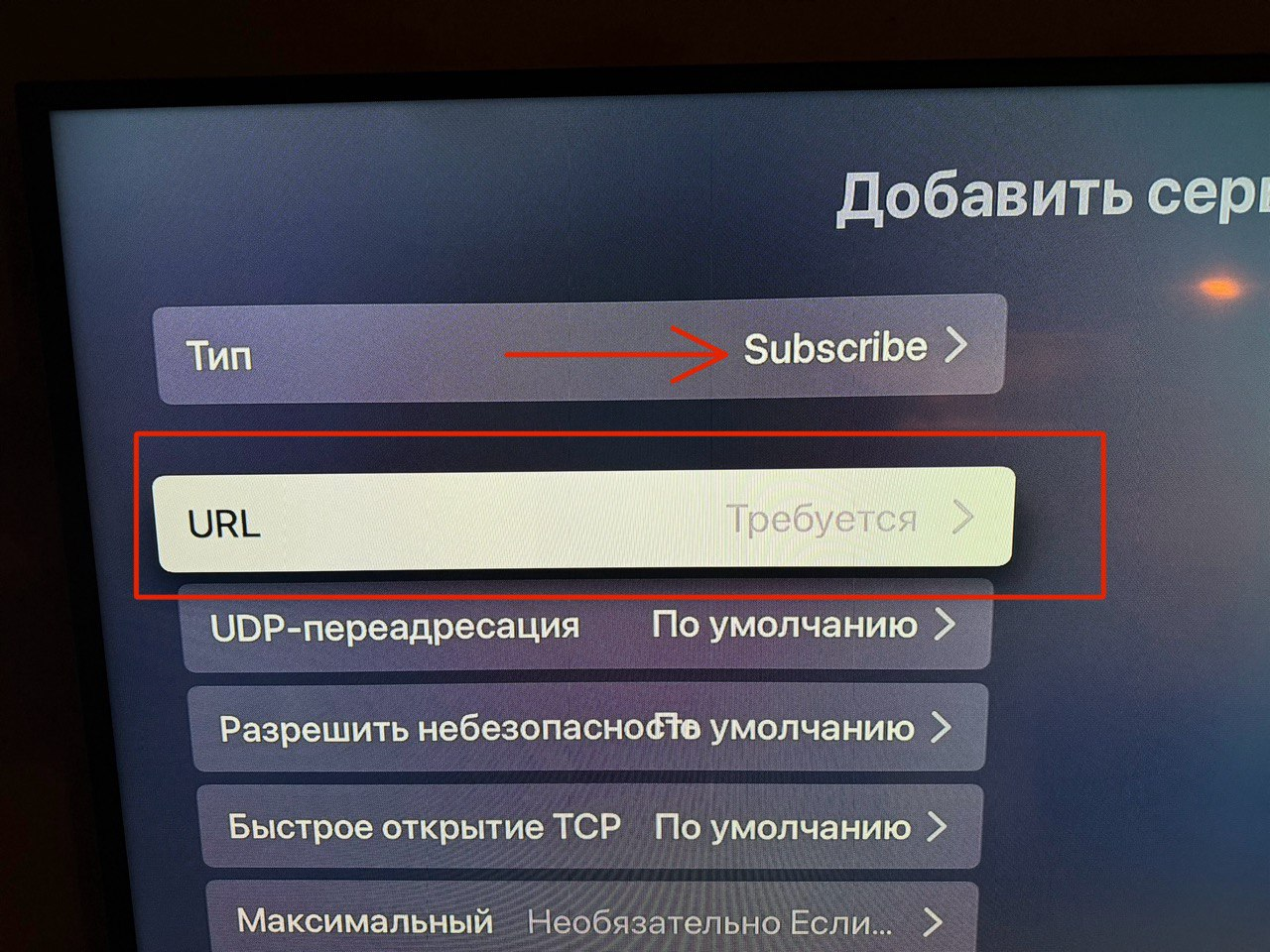
Select the Subscribe type and open the URL field.
4
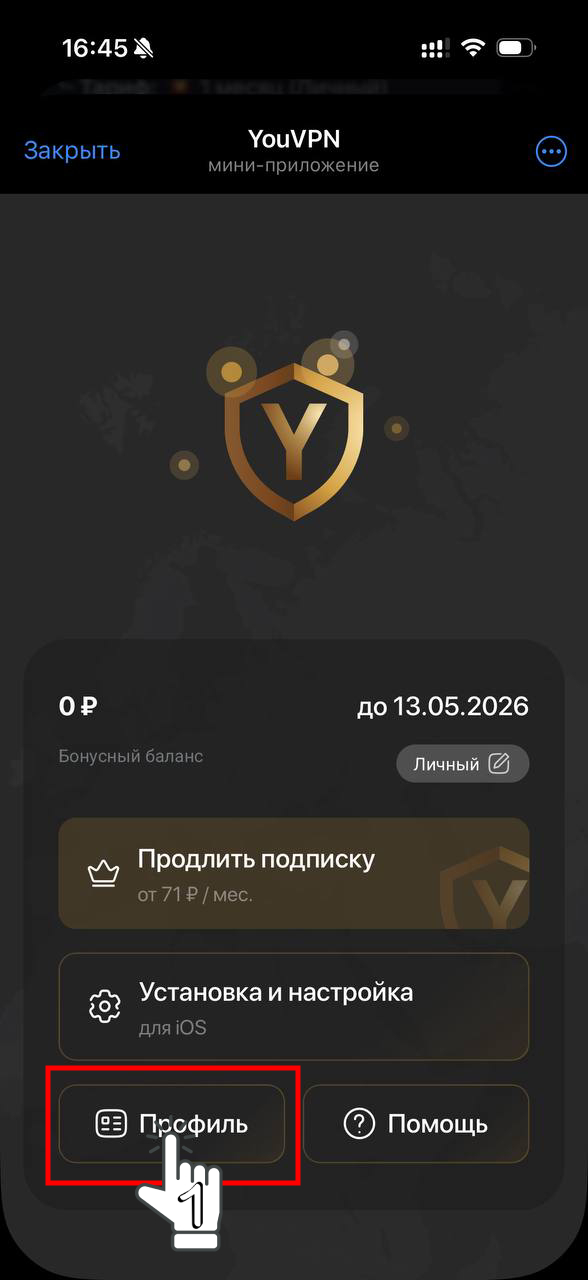
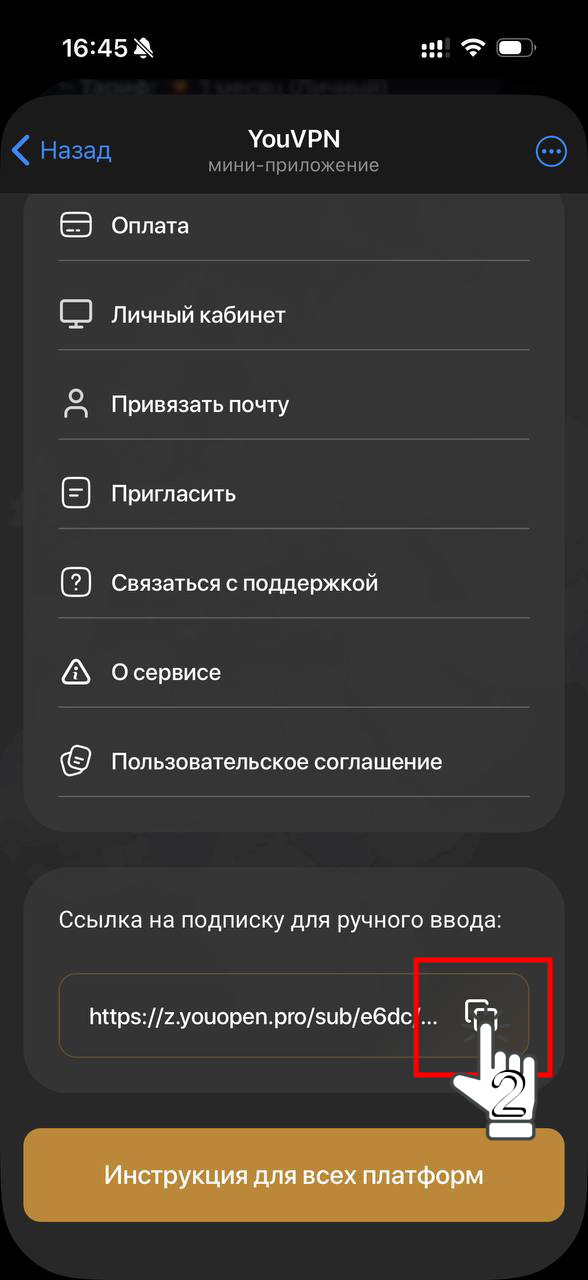
Open your account or the Telegram bot on your phone. Copy your subscription link so you can add it to the app on your TV.
5
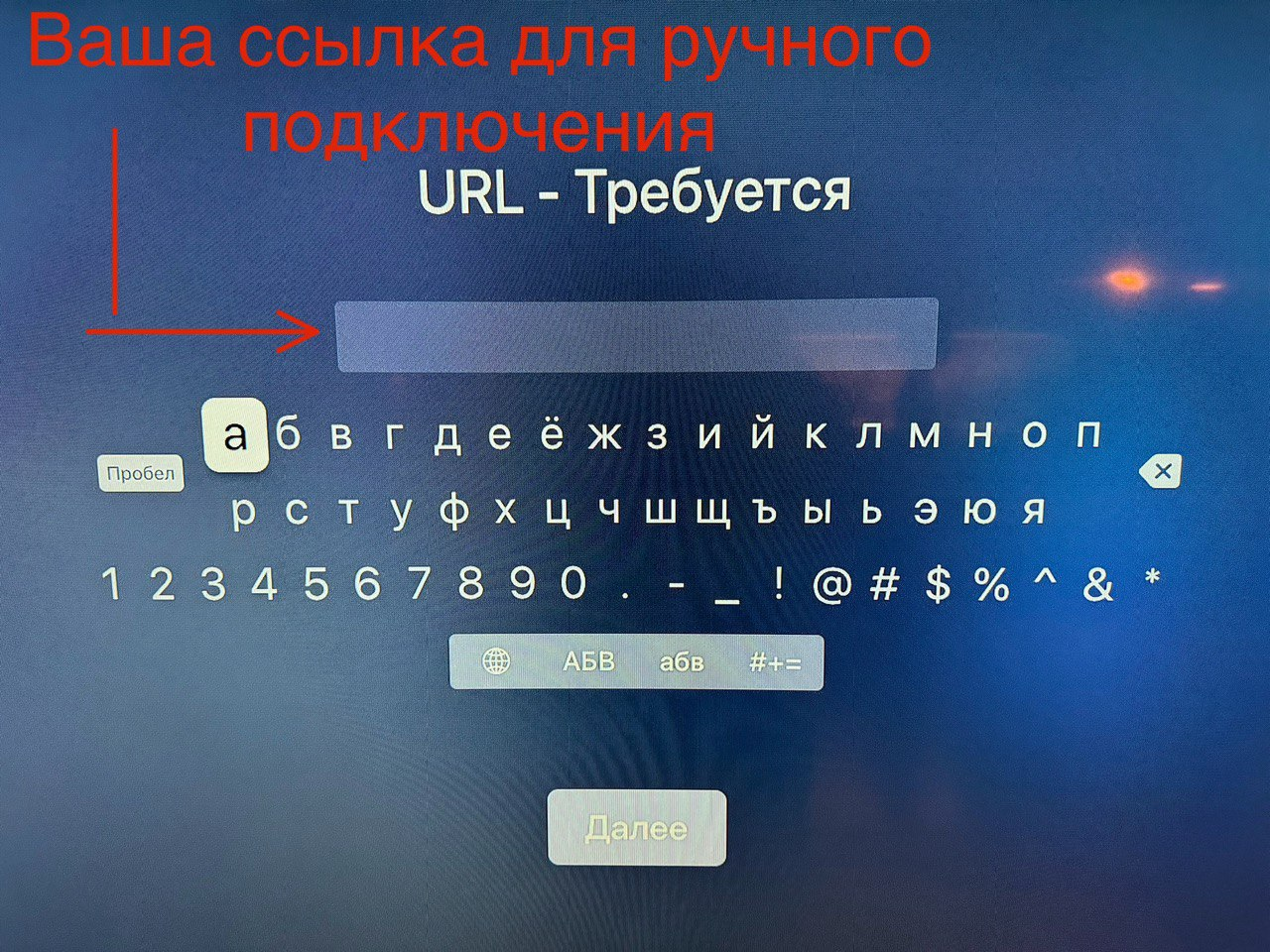
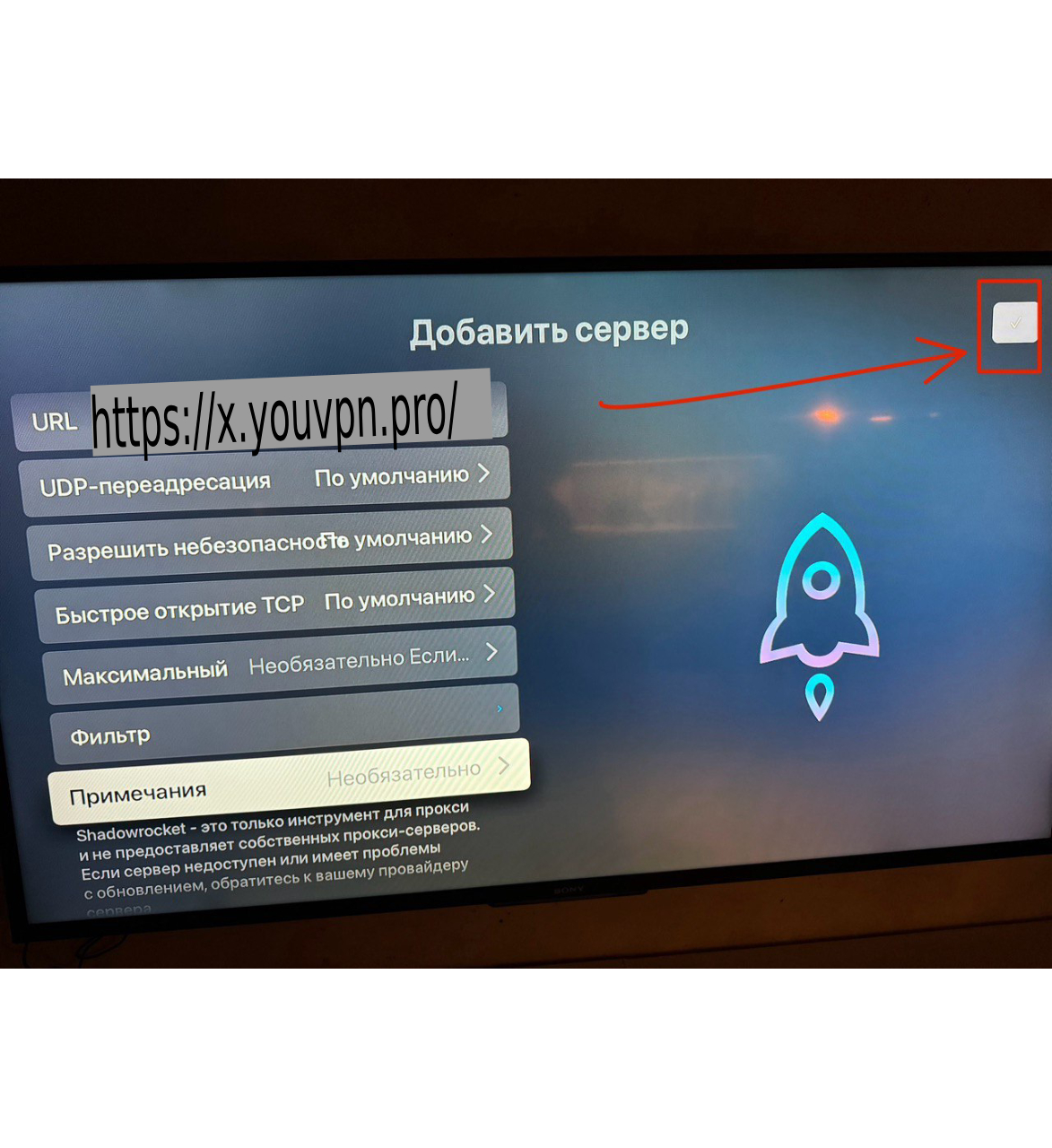
Enter the complete subscription link without extra spaces, then select “OK”.
6
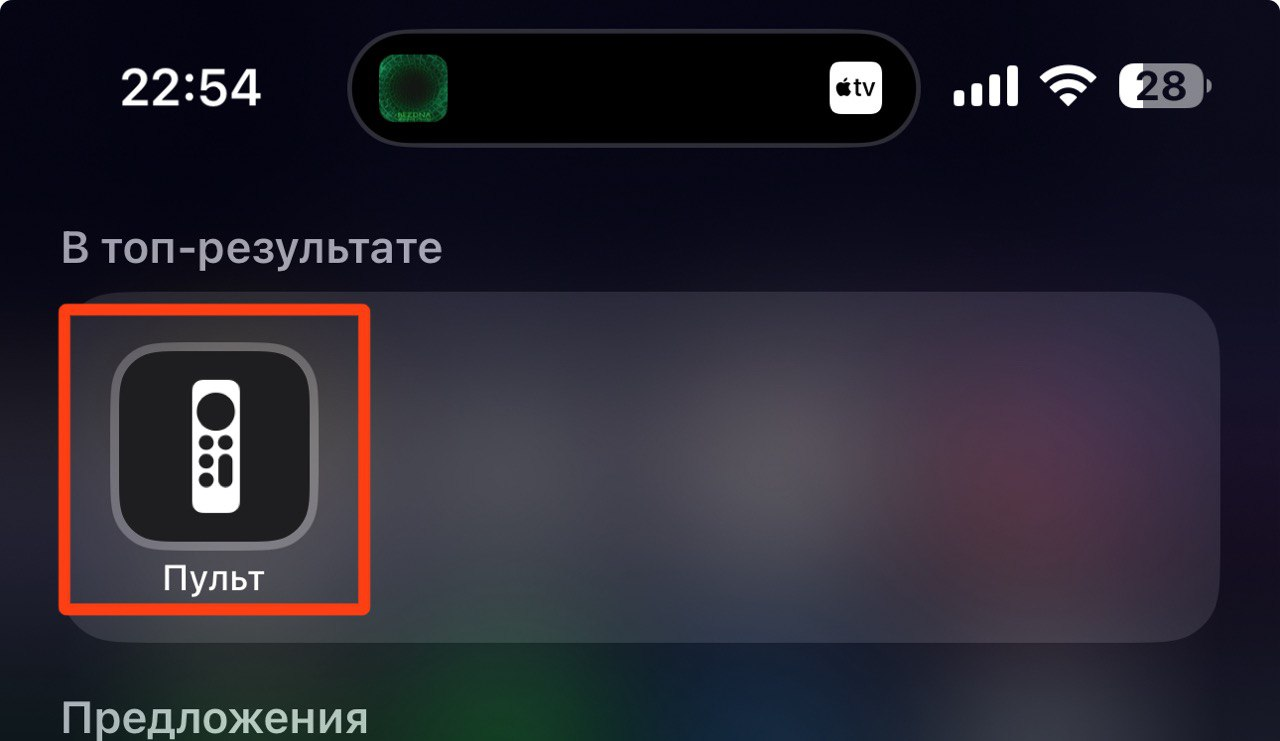
To avoid typing the link manually, open the Apple TV Remote in Control Centre on your iPhone and select your TV.
6.1
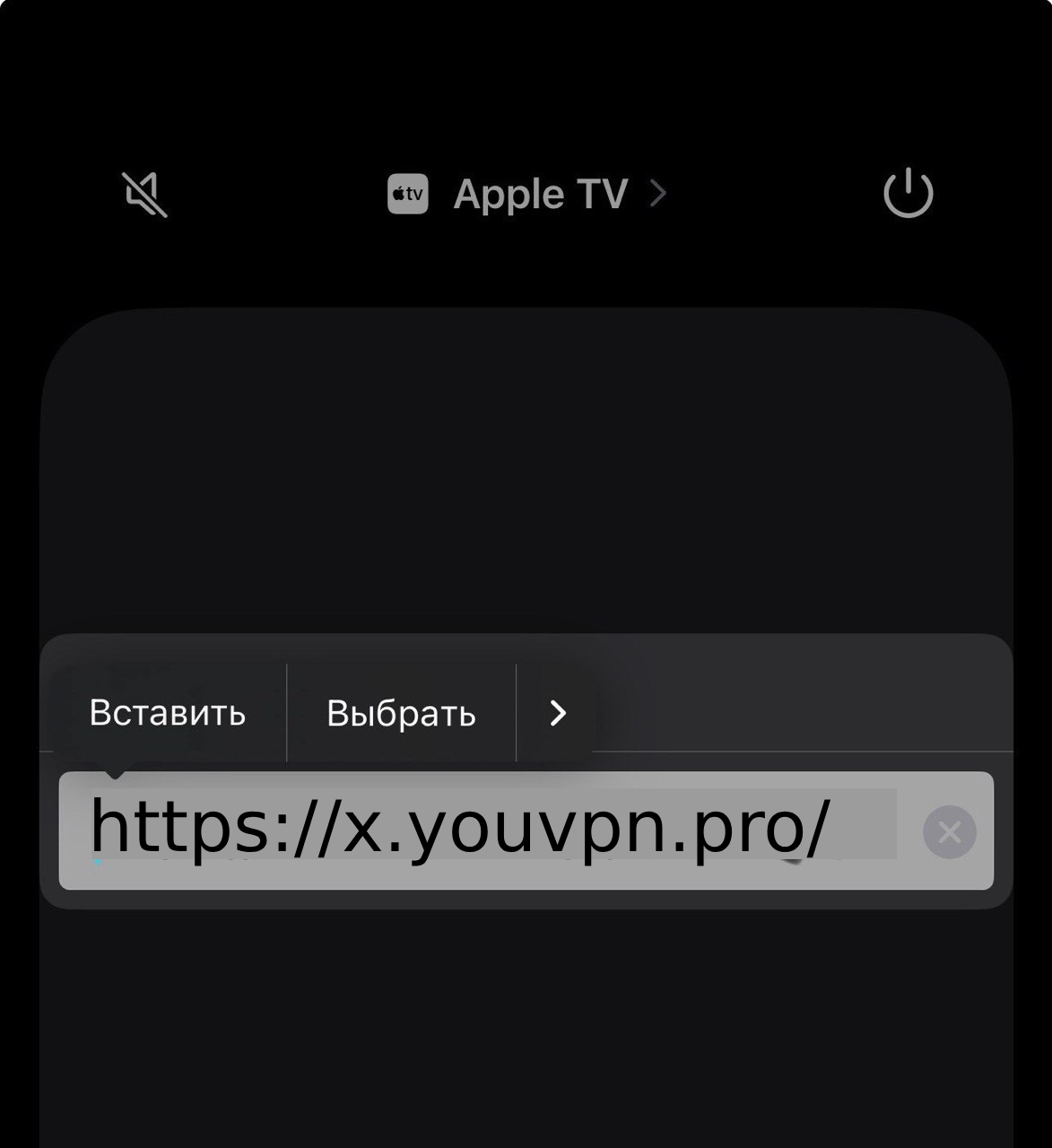
Touch and hold the input field on your iPhone, then select “Paste”.
7
Leave the optional fields empty if you do not need them. Select “Next”, then save the configuration using the checkmark in the top-right corner.
8
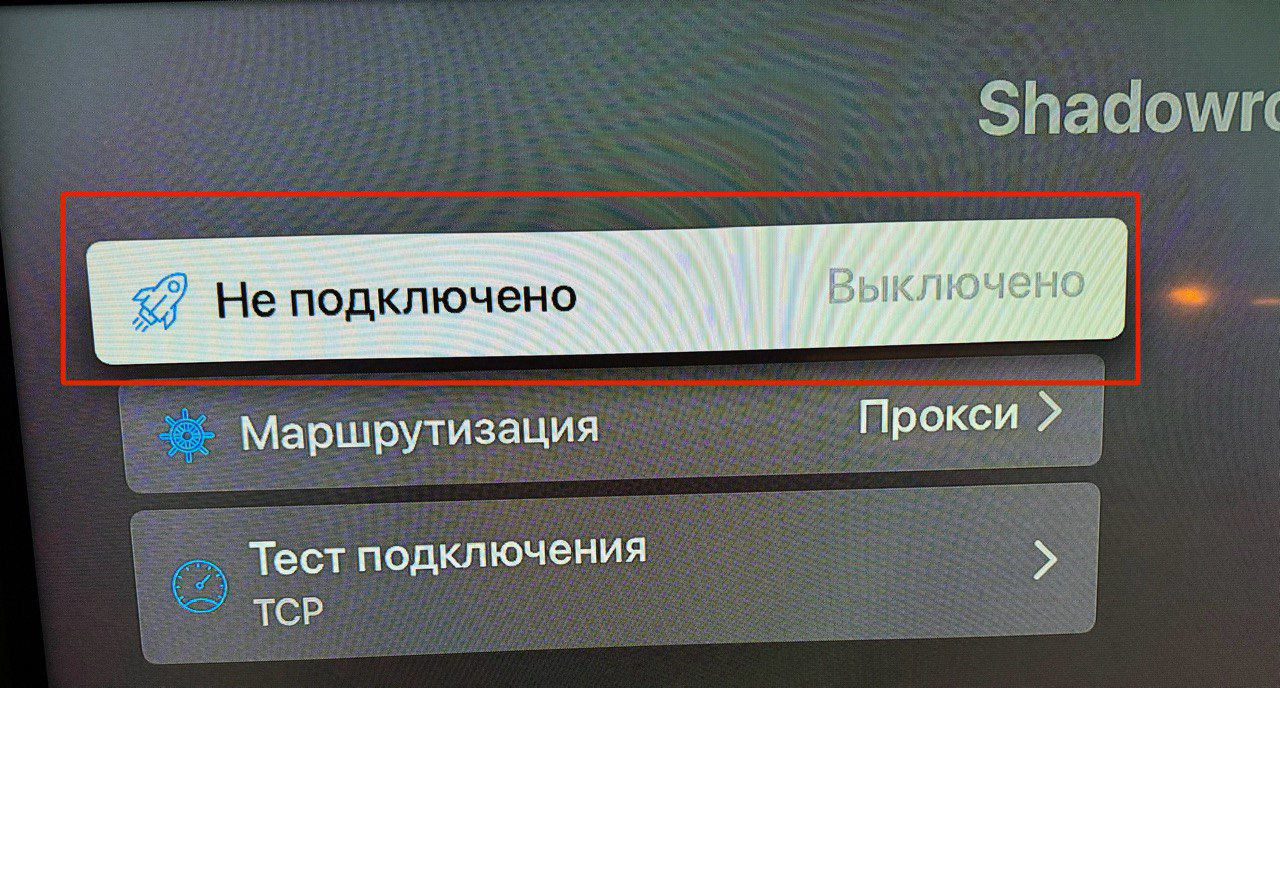
The configuration has been added. Choose a location and connect.
Your experience matters
Did this help?
Your feedback helps us make these guides clearer.
We save your rating, reason and the guide address.