 YouVPN
First, choose an app
Choose one app. You will find your subscription link in your account. Find your processor type in the Apple menu → “About This Mac”.
HAPP
For Macs with Apple silicon
Hiddify
For Intel-based Macs
M-chip (ARM)
1
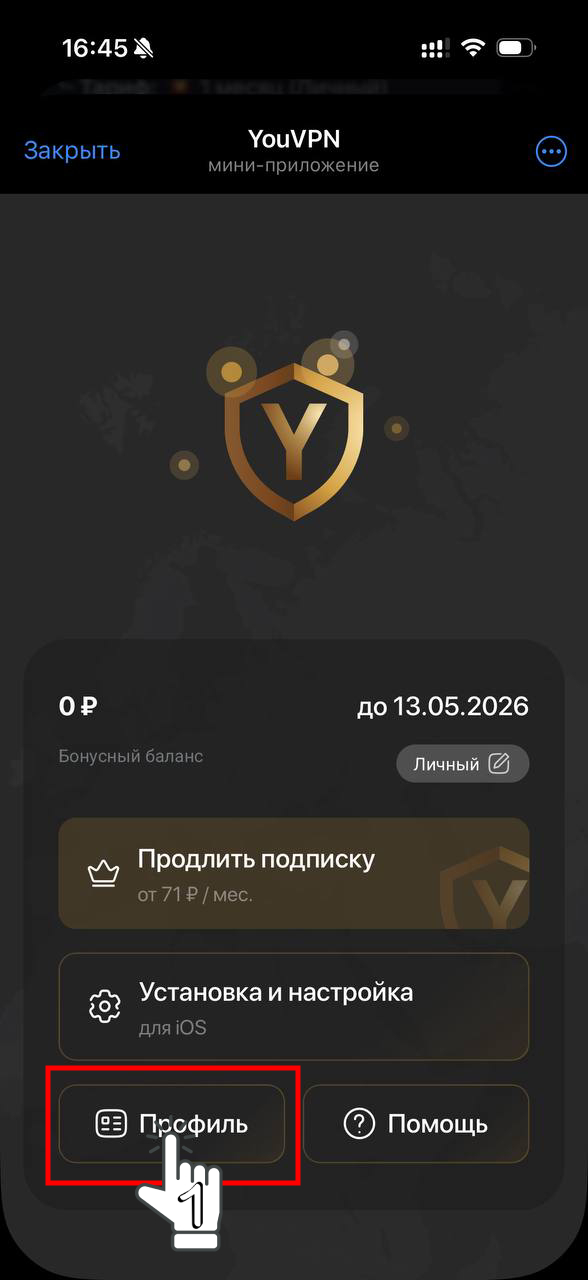
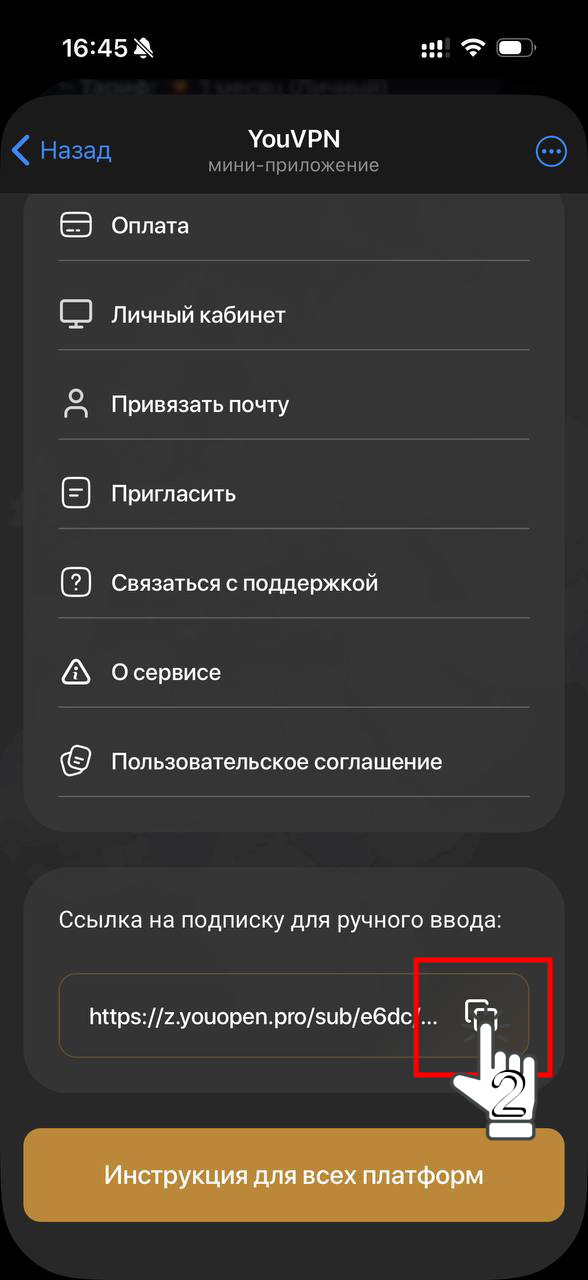
Open your account or the Telegram bot. Go to your profile and copy your subscription link.
2
Download and install HAPP.
3
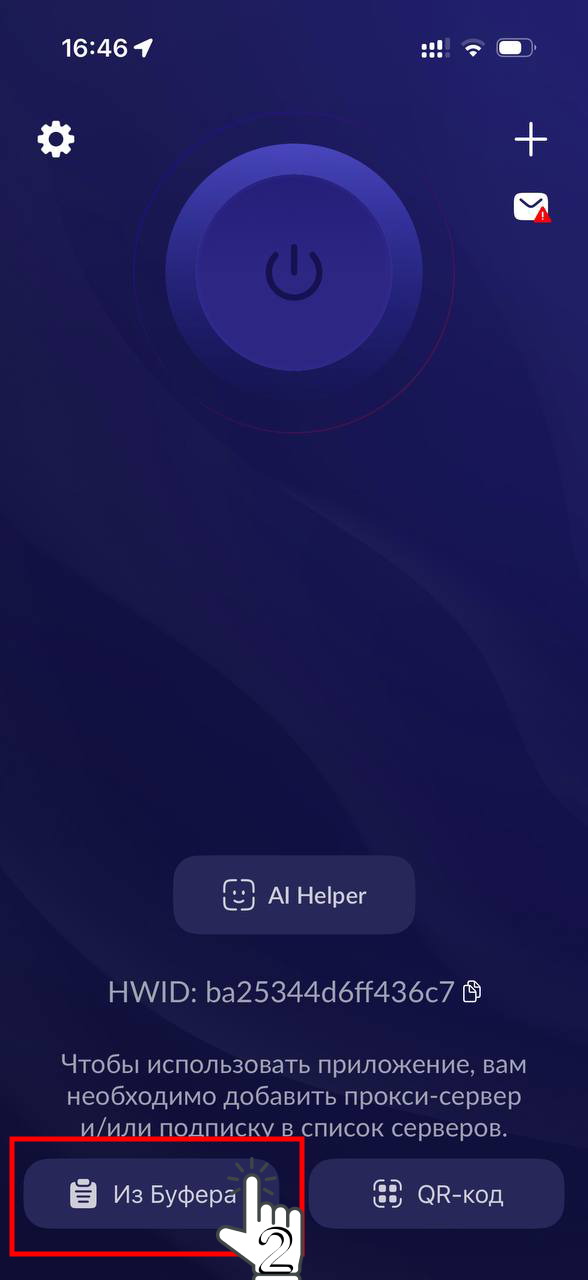
Open HAPP and select “From clipboard” («из буфера» in the screenshots). Allow clipboard access if prompted. Once your YouVPN subscription appears, select a location and connect. If this profile is already there, update it instead of adding a duplicate.

4
Open a site to check your connection. If it does not work, choose another location and reconnect. Connection troubleshooting
Intel
1
Open your account or the Telegram bot. Go to your profile and copy your subscription link.
3
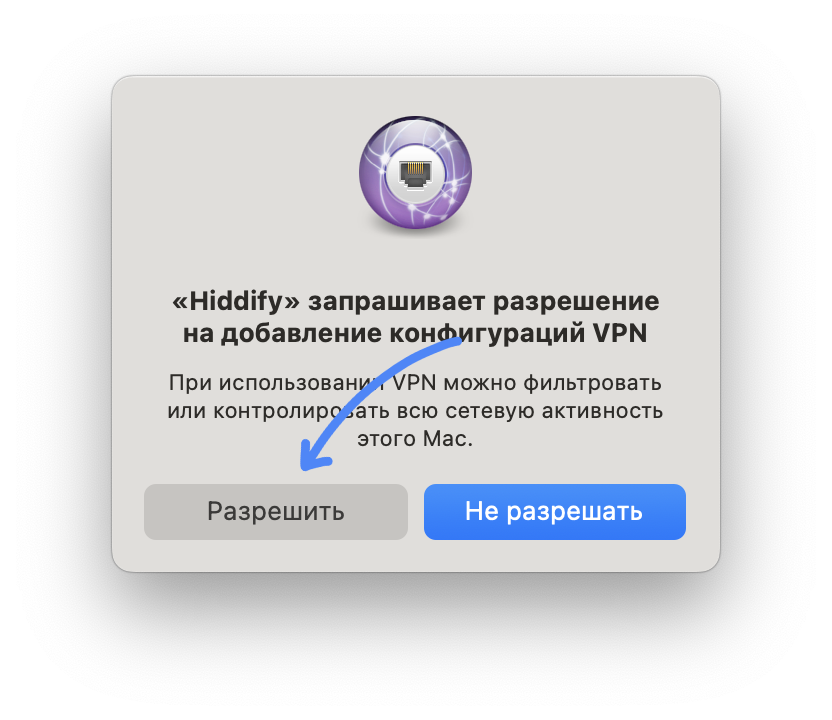
Open Hiddify or OneXray. The steps below show the setup in Hiddify.
4
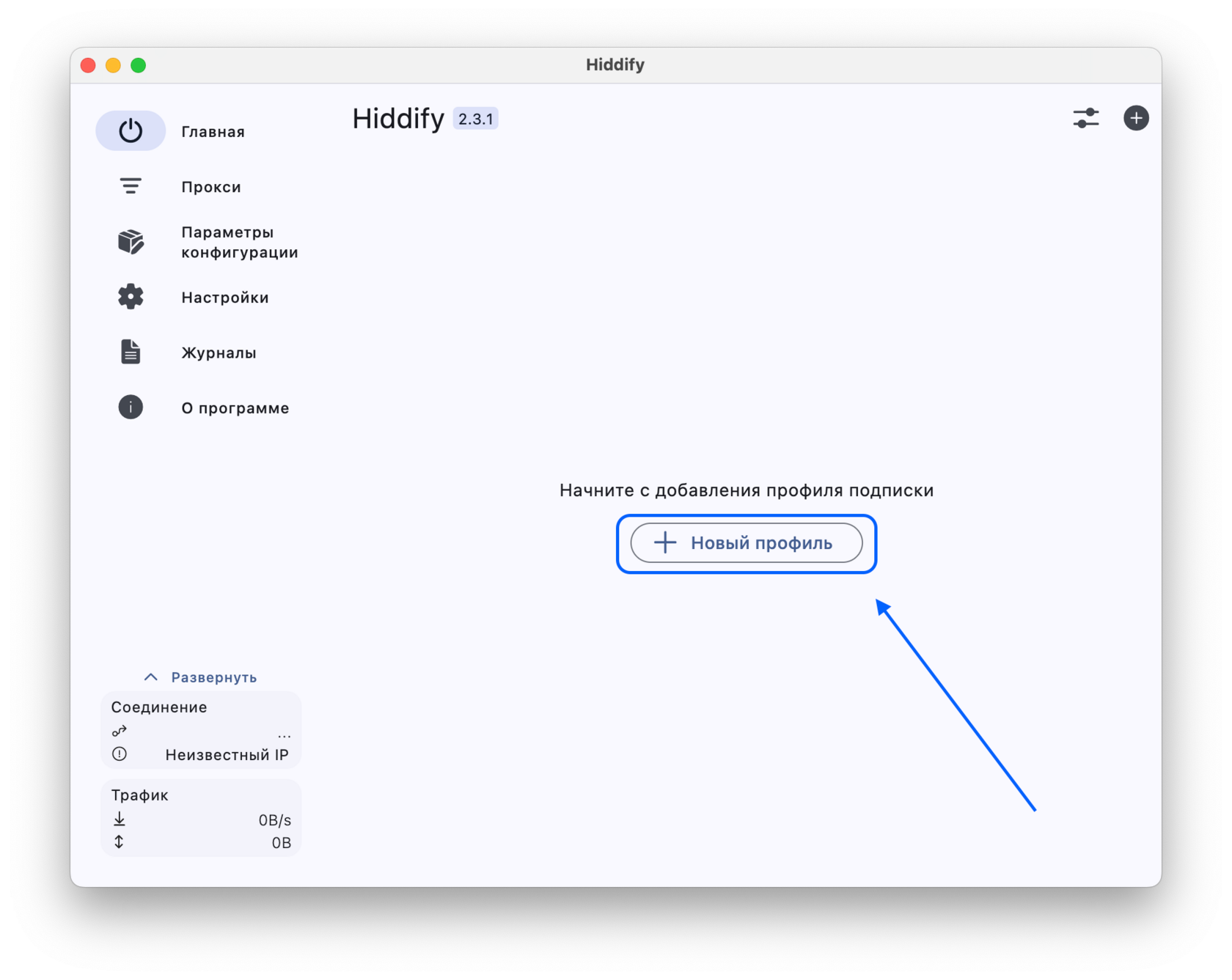
Select “New profile”.
5
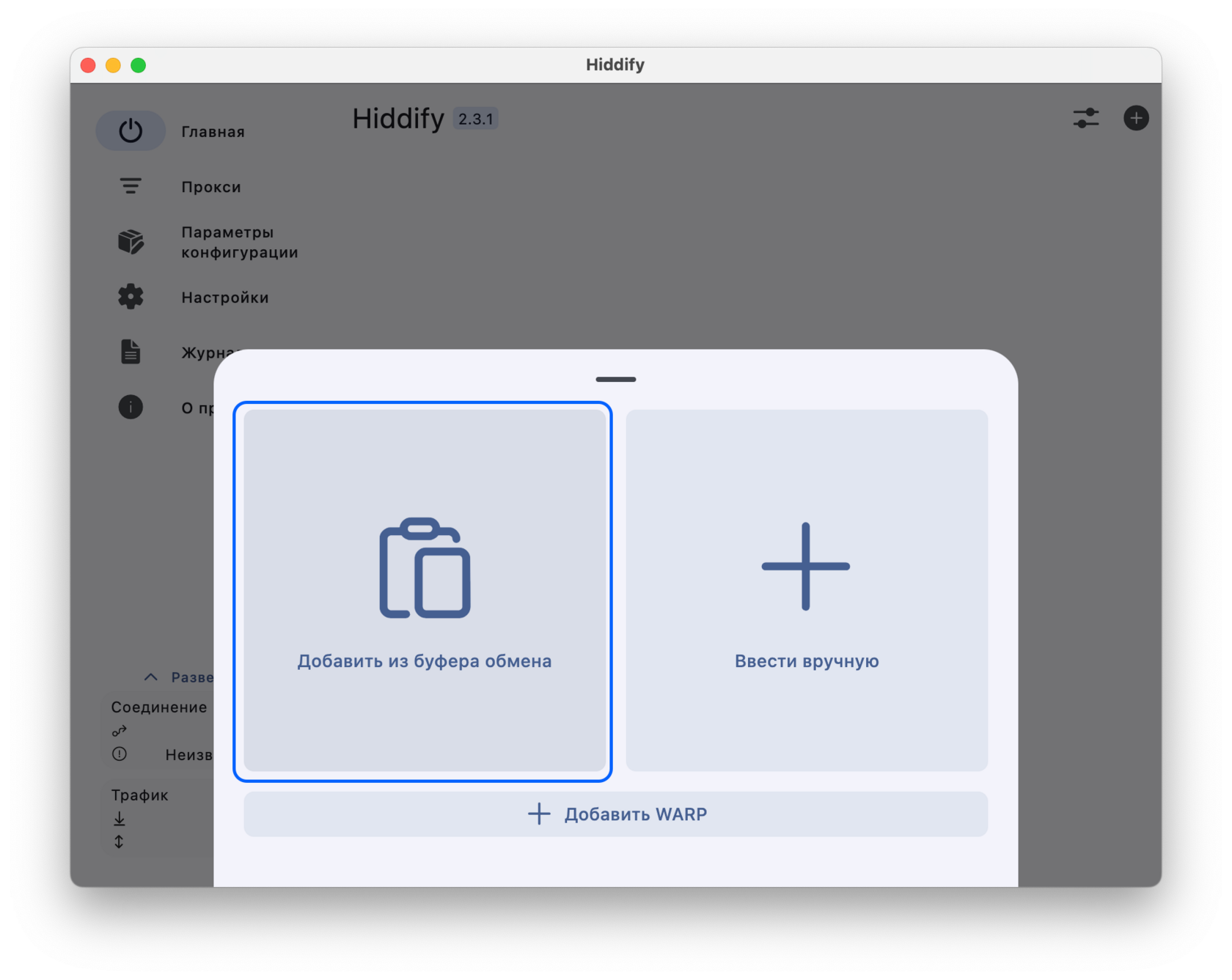
Select “Import from clipboard”.
6
Your subscription has been added. Press the round connect button.

7
If the connection fails, choose another country under “Proxies” and reconnect.
Your experience matters
Did this help?
Your feedback helps us make these guides clearer.
We save your rating, reason and the guide address.