 YouVPN
First, choose an app
Choose one app. You will find your subscription link in your account.
V2RayTun
App for your TV
No Google Play? Install with an APK
For TVs and streaming devices running Android TV 7.0 or later.
- Select “Download APK” on the V2RayTun card. Download the file directly on your TV, or use a computer and transfer it to your TV with a USB drive.
- Open the APK with a file manager on your TV. If prompted, allow this file manager to install apps.
- Select “Install”, open V2RayTun and continue with the setup guide below. You can turn off the file manager’s installation permission afterwards.
If installation fails, contact support.
1
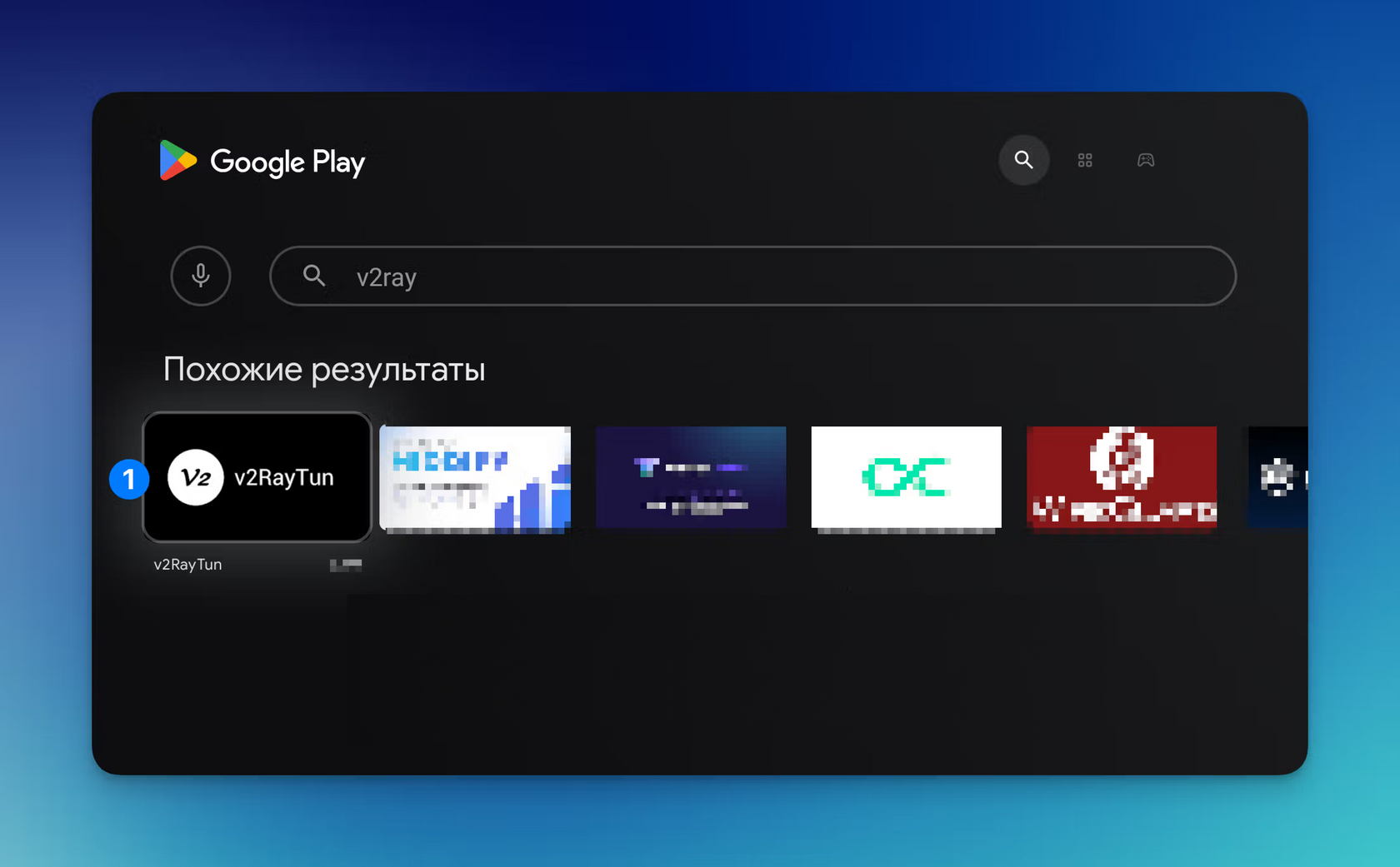
Install V2RayTun from Google Play on your TV, or download the APK. How to install the APK on your TV
2
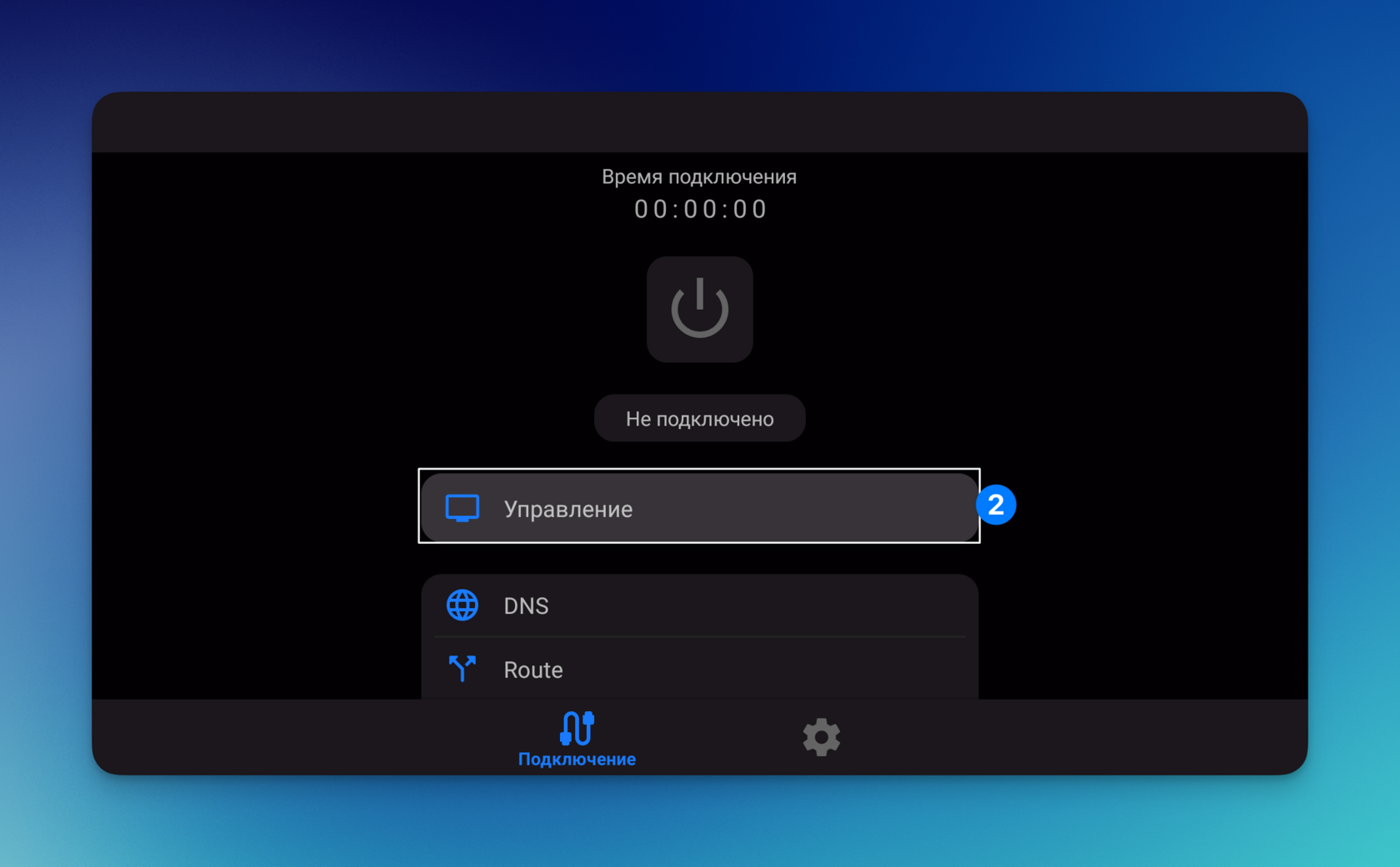
Open “Management”.
3
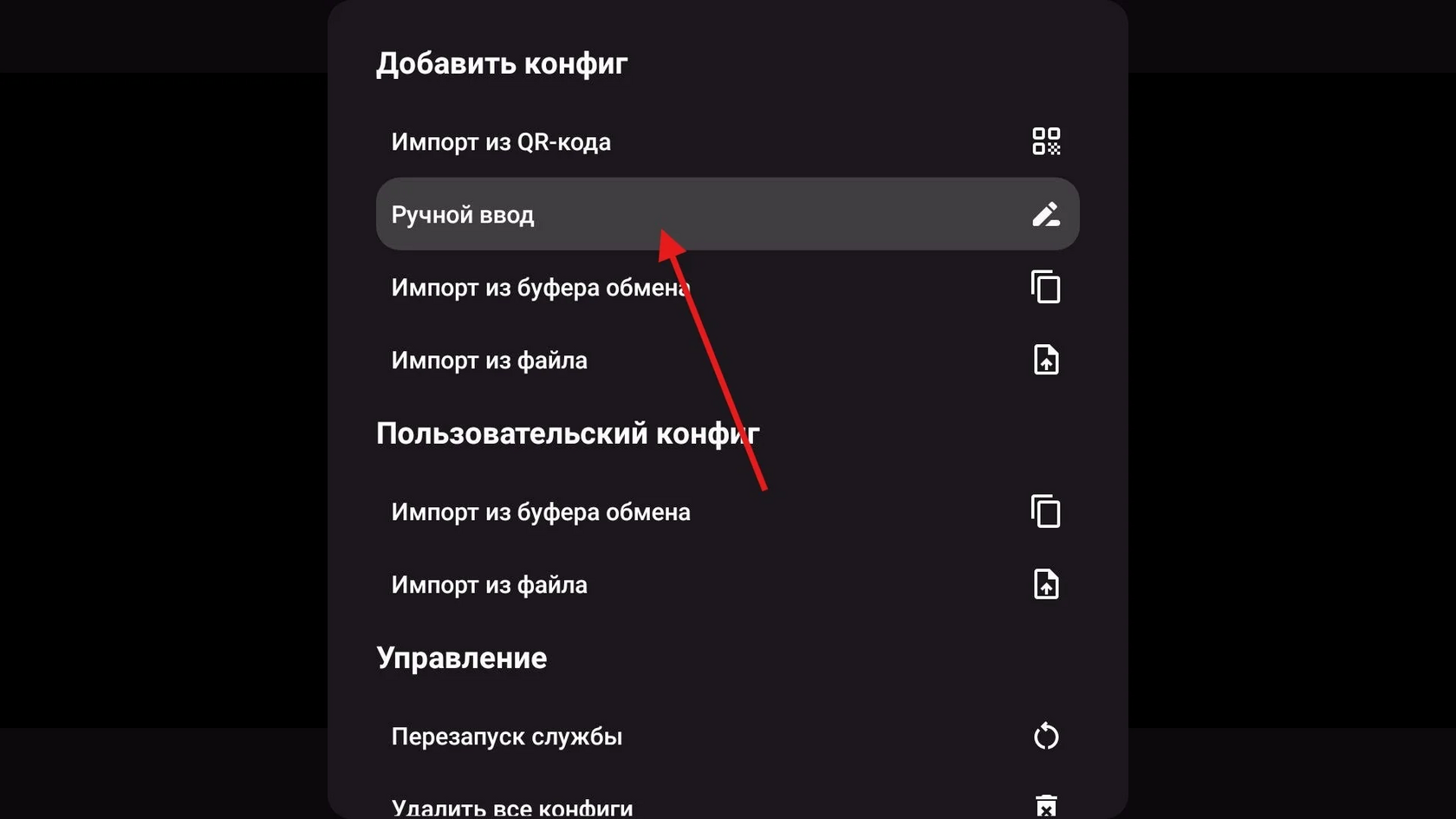
Under “Add config”, select “Manual input”.
4
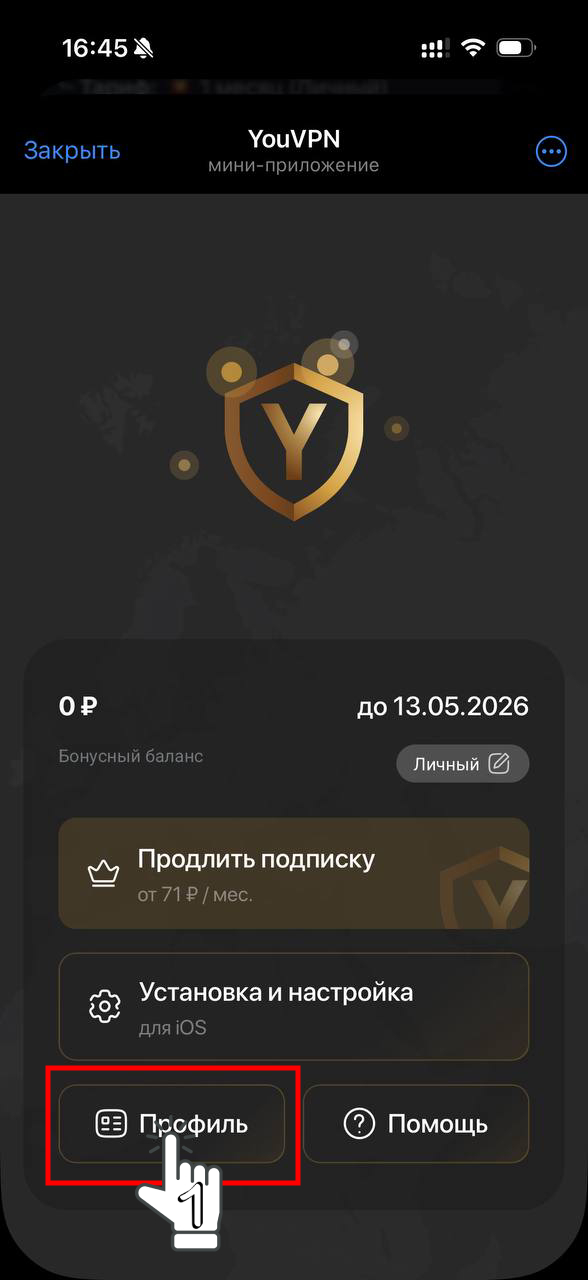
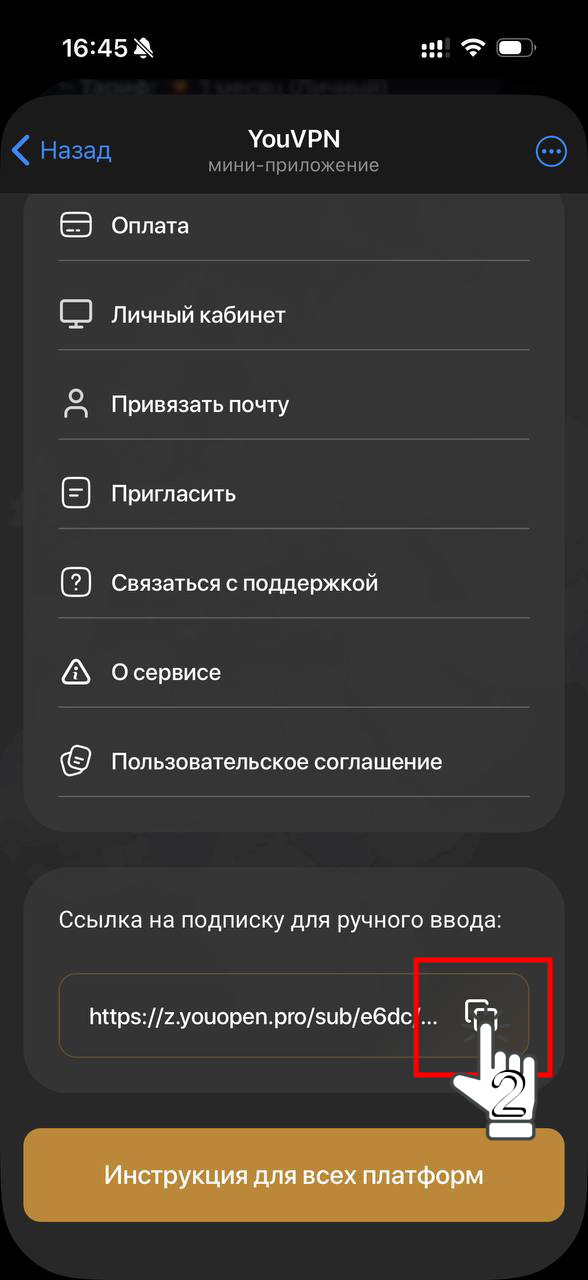
Open your account or the Telegram bot on your phone. Copy your subscription link so you can add it to the app on your TV.
5
Enter the complete link, including every character. Select “OK”.
6
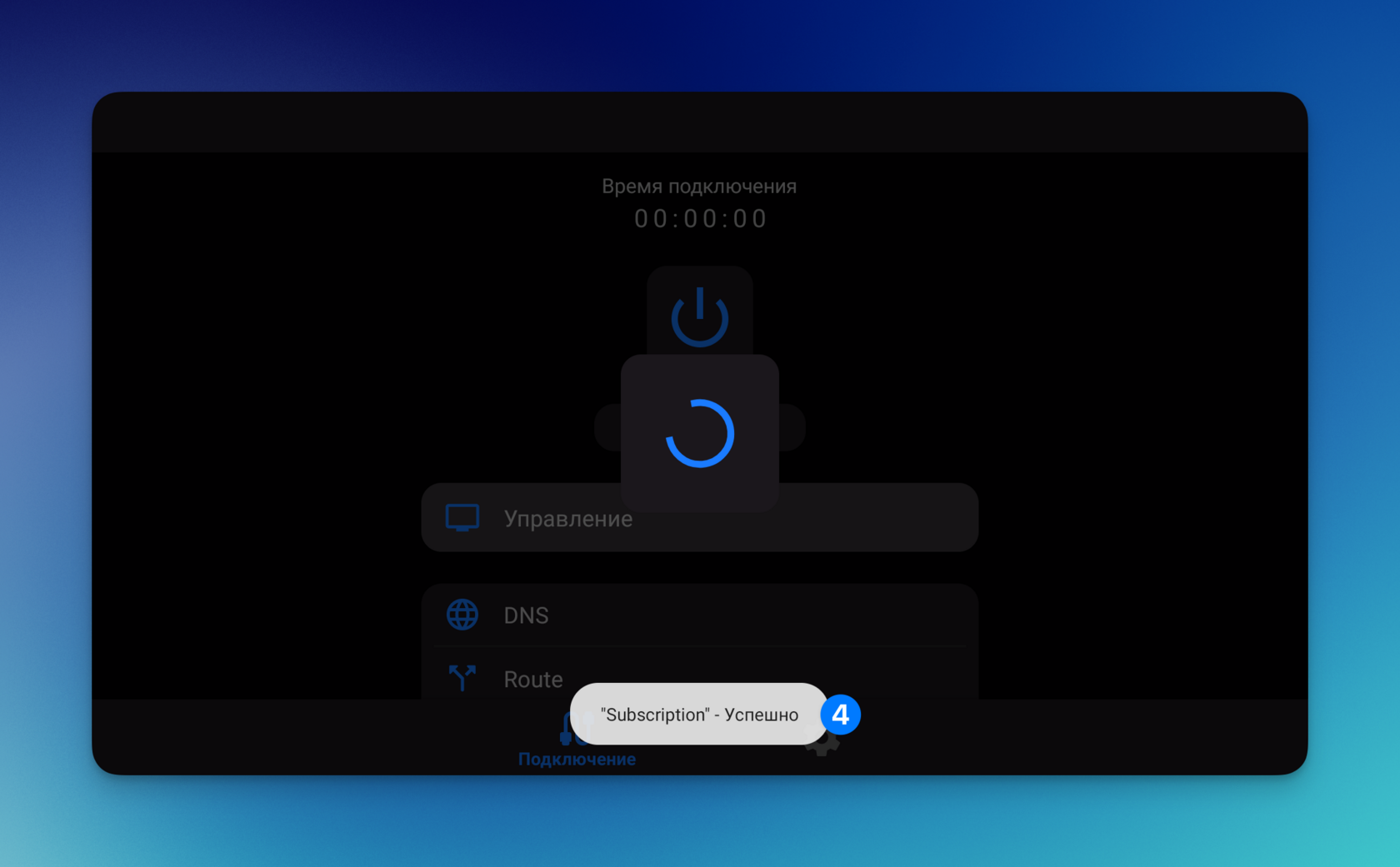
The “Subscription — Success” message means your subscription and location list have been loaded.
7
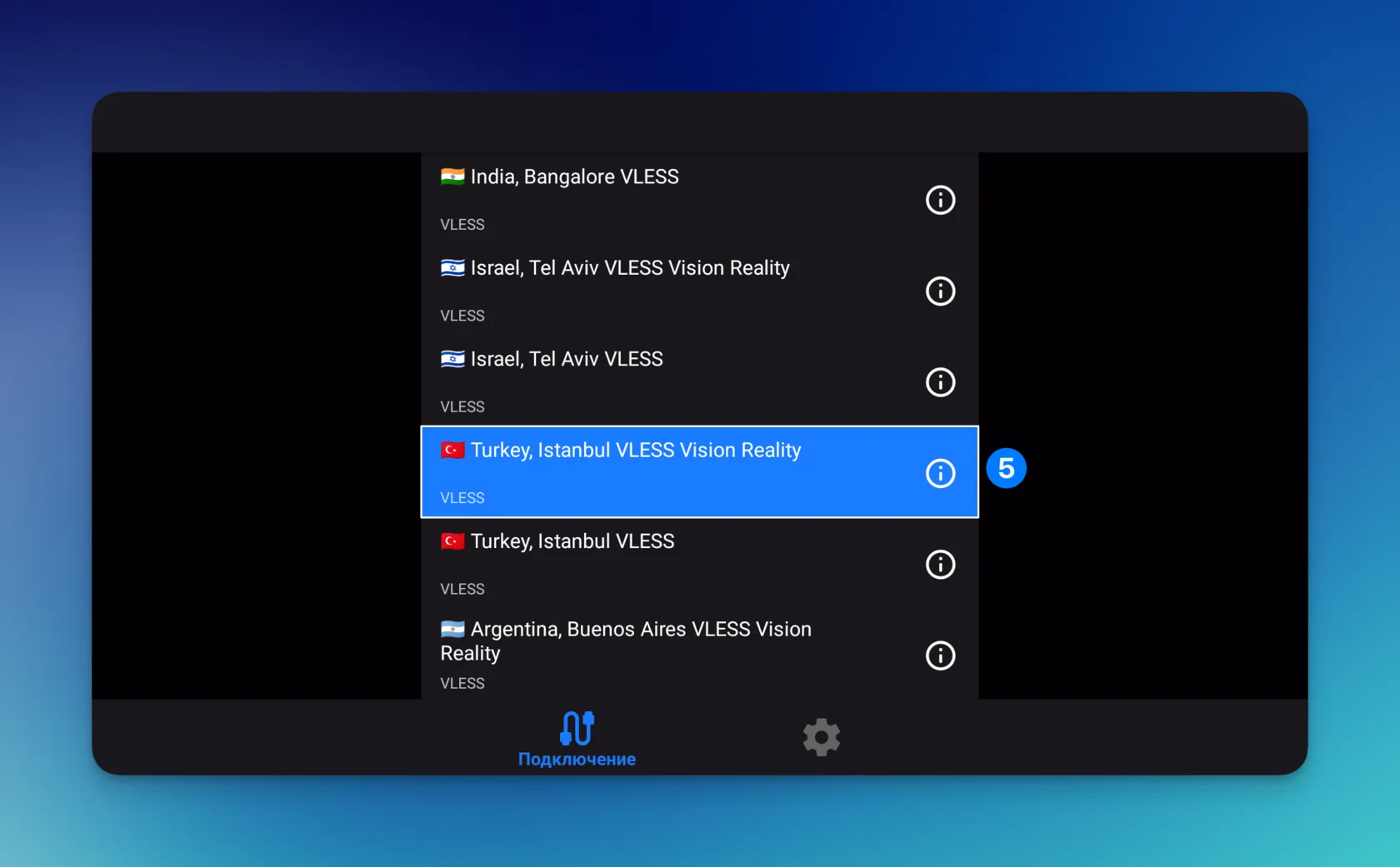
Scroll down the list and choose a location.
8
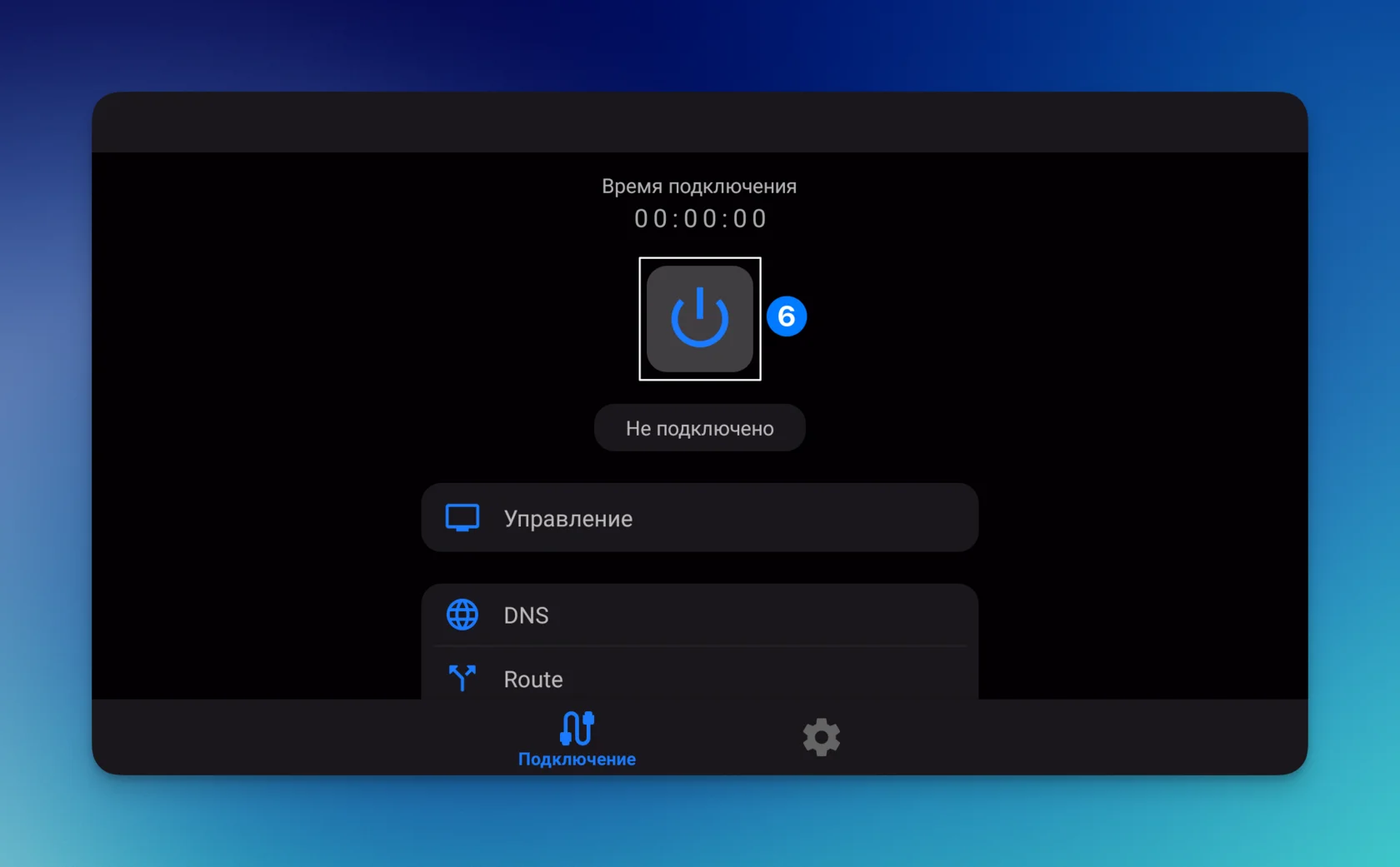
Return to the top and press the connect button in the centre.
9
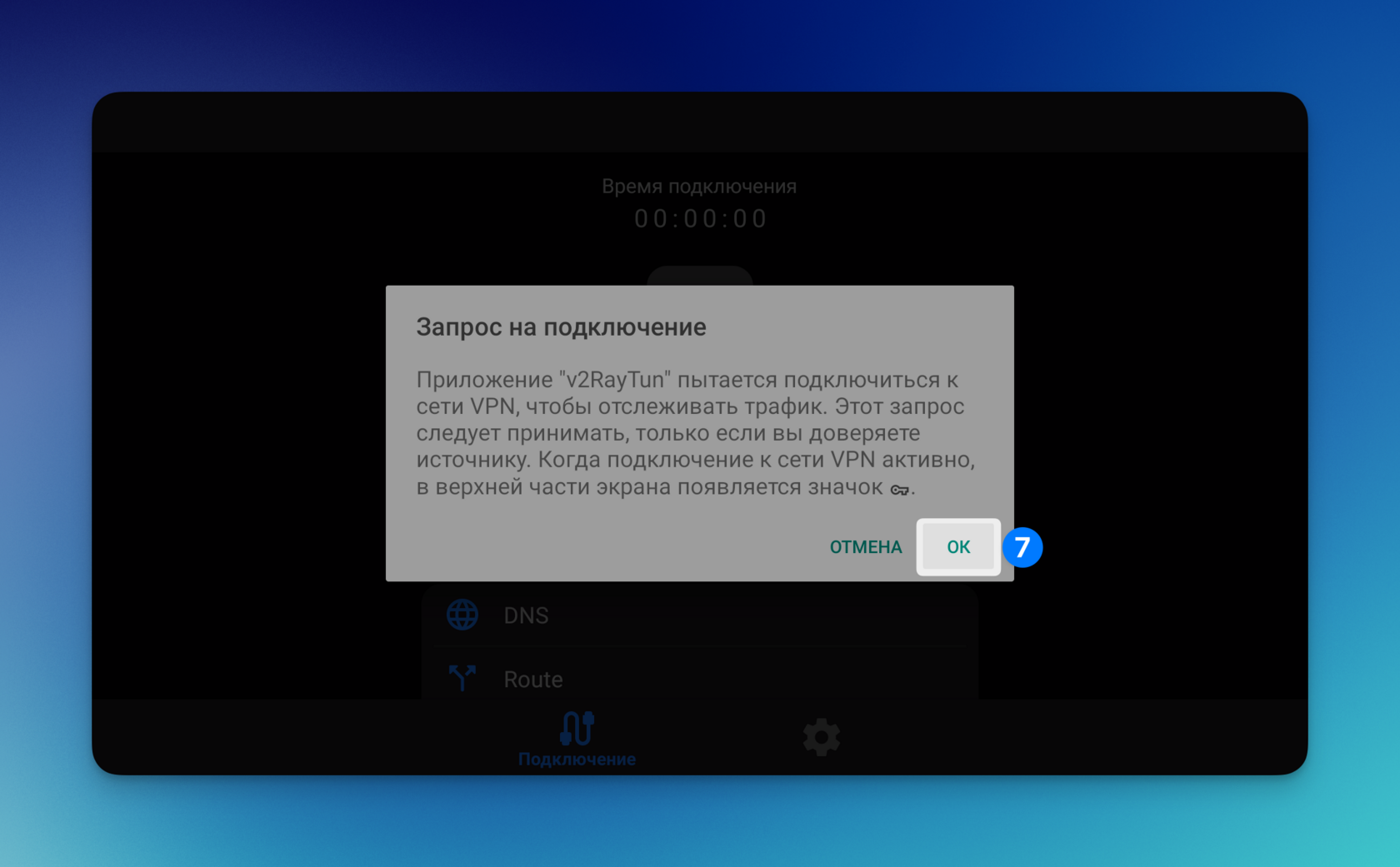
Select “OK” to allow the VPN connection.
10
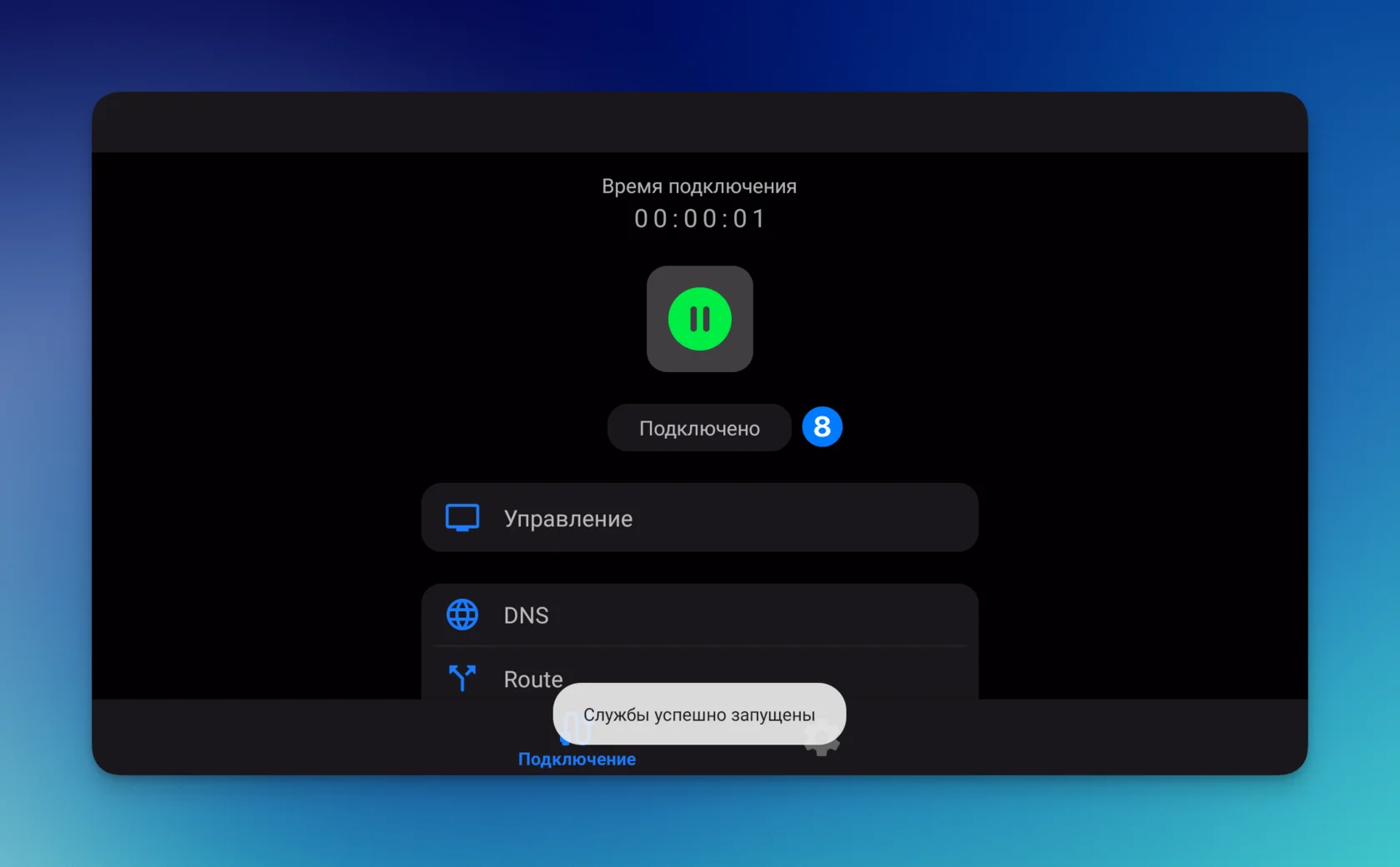
Once connected, the button turns green and the status changes to “Connected”. Open a site or app to check the connection.
Your experience matters
Did this help?
Your feedback helps us make these guides clearer.
We save your rating, reason and the guide address.